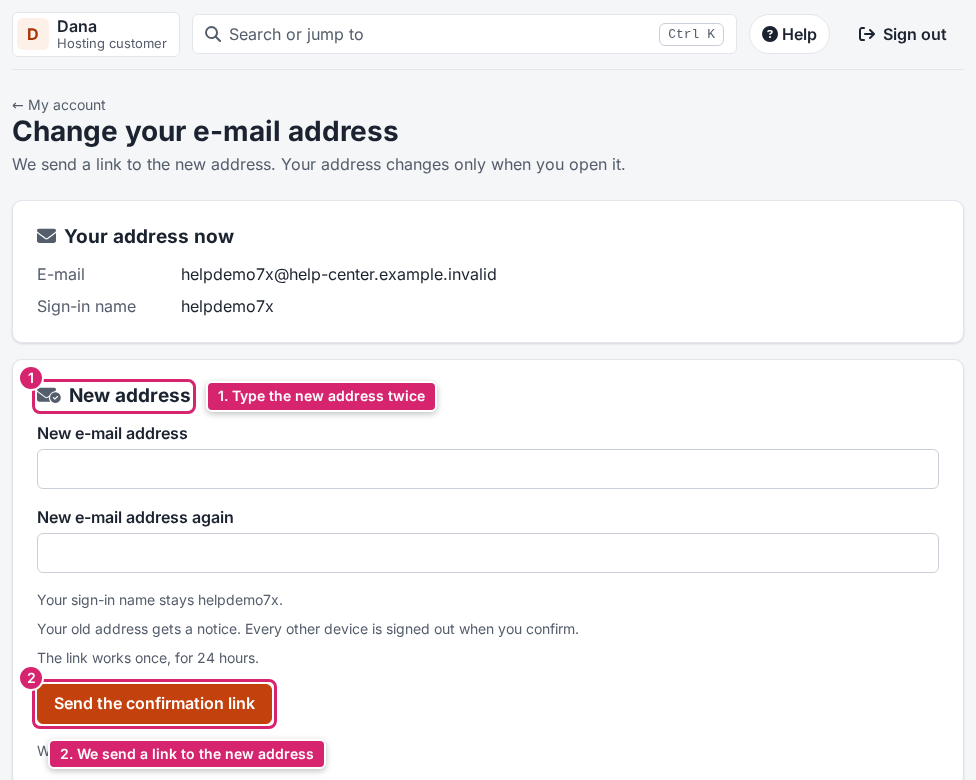
Steps
- In the console, open Account, then Security, and click Change e-mail address.
- Under New address, type the new address in New e-mail address and again in New e-mail address again.
- Click Send the confirmation link and confirm that it is you, with your password or your second step.
- Open the new mailbox and click the link in our e-mail within 24 hours.
- On the page that opens, click the button to confirm the change.
Result
Your account uses the new address. If you signed in with your e-mail address, you now sign in with the new one. Your other devices are signed out for safety. Your old address gets a short notice about the change.
What to do next
If something goes wrong
- No e-mail at the new address? Check its spam folder. The change waits until you confirm it; you can also cancel it on the same page.
- You can ask for up to 5 changes per day.
- You didn't ask for a change but got the notice? Change your password at once and open a ticket.