Plesk is a separate sign-in from the customer console. You use it for the technical side of your hosting: e-mail boxes, files, databases and web settings. Day-to-day editing of an Exponential site happens in the site's own editor instead (see Edit your Exponential site).
Before you begin
You are the account owner, or your user of the account has the permission Sign in to control panels. The host must be live (not paused or ended).
Steps
- In the console, open Hosts (or the site page of the host).
- Click Open control panel (Plesk).
- If the console asks you to confirm it is you (Verify it's you), enter your password or your second step.
- Plesk opens in a new tab, already signed in to your hosting account.
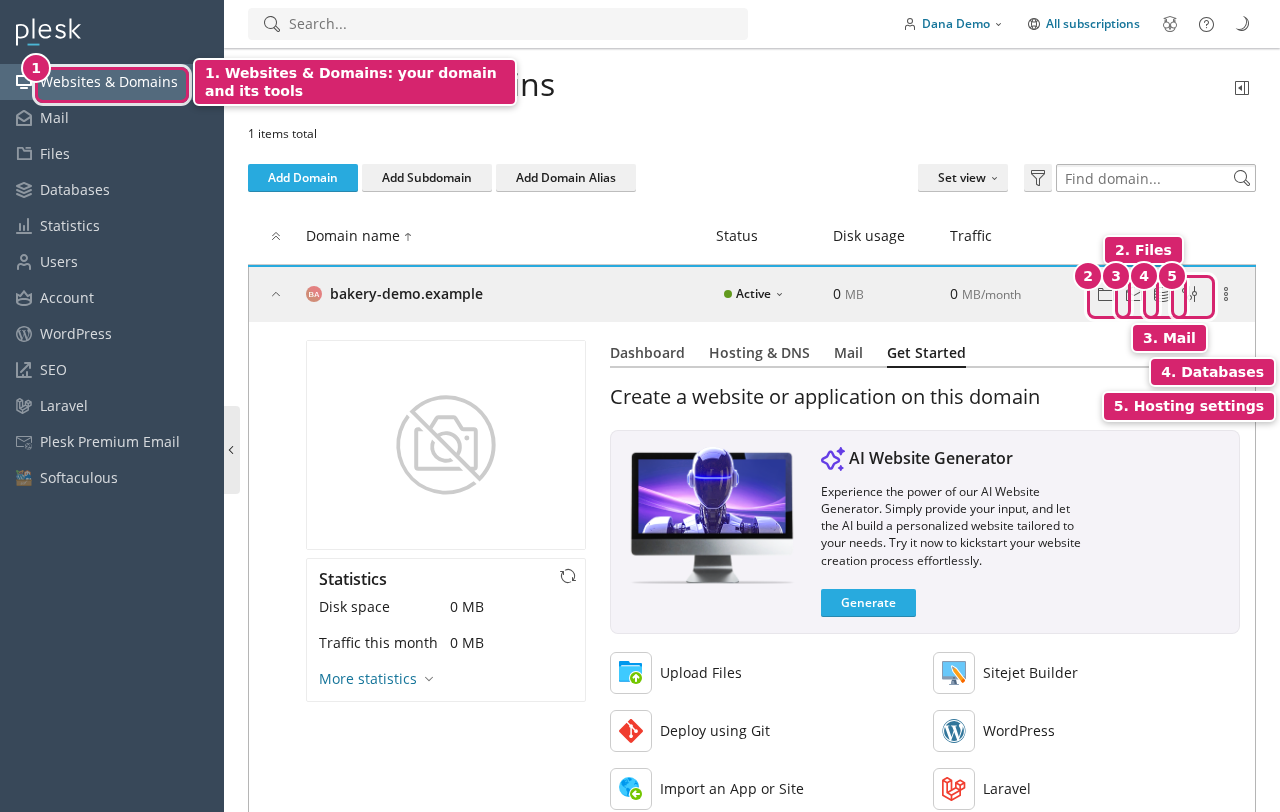
- Click Websites & Domains to see your domain and its tools: Files, Databases, Mail, SSL/TLS Certificates and Hosting Settings.
Result
You are in Plesk and can manage your hosting account.
What to do next
Signing in without the console: every host has one-click sign-in, and you can also sign in directly: open the Plesk address in your browser (it ends in :8443, and is in the e-mail you got when your site was set up) and enter your Plesk user name and password. Don't have them? Open a ticket and we send them over a secure channel; 7x never sends passwords in plain e-mail. A new Plesk password: open the service and use Control panel password.
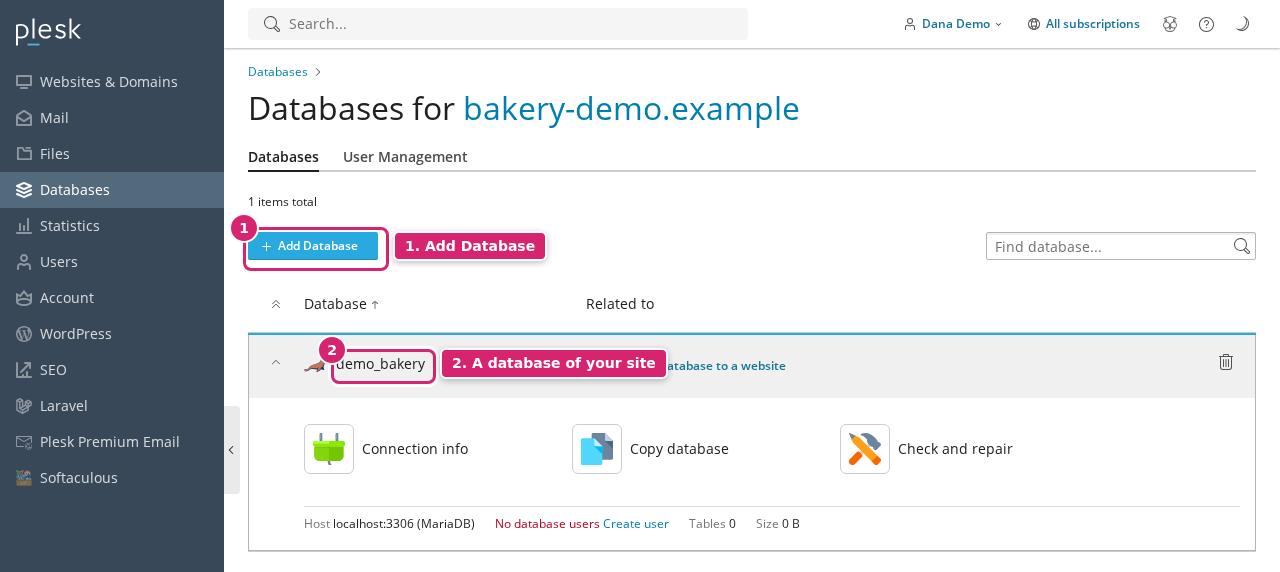
Be careful in Plesk: deleting files, databases or the domain itself can take your site offline. Changes to DNS, PHP and web server settings are best left to us on managed plans; ask in a ticket.
Next: Create an e-mail box or Upload website files.